HUD and Panels
The movable HUD elements, the resource and aura bars, and the character panel on Z. The keybinds themselves are on Keys and Wheel.
HUD Layout Editor
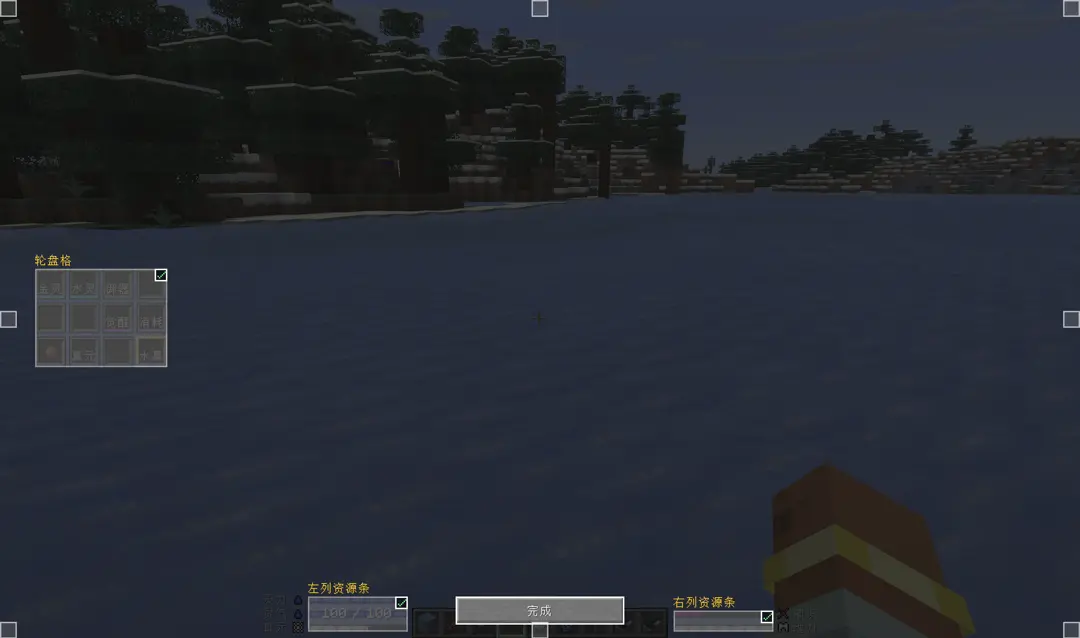
"Edit HUD Layout" (right Shift by default) opens a layout screen of its own: every movable HUD element the framework knows about is drawn with a translucent rectangle and its name, and can be dragged with the left button. Hold Shift while dragging to nudge the position and Ctrl to nudge the size.
The eight small squares along the border are anchors: drop an element on one and its anchor becomes that point, which it then follows. An anchor is relative to the window, so the element moves with its anchor when the window changes size. The default anchor is the midpoint of the window's bottom edge.
INFO
The layout editor belongs to the framework the mod draws its own HUD elements with; the two resource-bar columns and the wheel's grid are what is wired into it so far. If you cannot find something, type /hud in chat: it lists every movable element with its layout key, the anchor it is bound to, position, size and whether it currently has anything to draw, and /hud <layout key> reset puts one back in its default place, deleting the saved value so it is still there after a restart. See the client screens page for how a module plugs an element in.
Resource Bars and Aura HUD

Resource bars and the aura concentration bar are driven by server-synced state; the client only draws them. The server syncs the aura at your position every Server Config → Aura → Sync Period ticks (5 by default), and fog and particles never decide aura values in reverse.
| Client setting | Effect |
|---|---|
| Client Settings → Resource Bars → Show Names | Shows the name next to each resource bar. |
| Client Settings → Resource Bars → Icon Layout | Draws the icons on "Two Sides" (default) or in the "Center". |
Character Information Panel
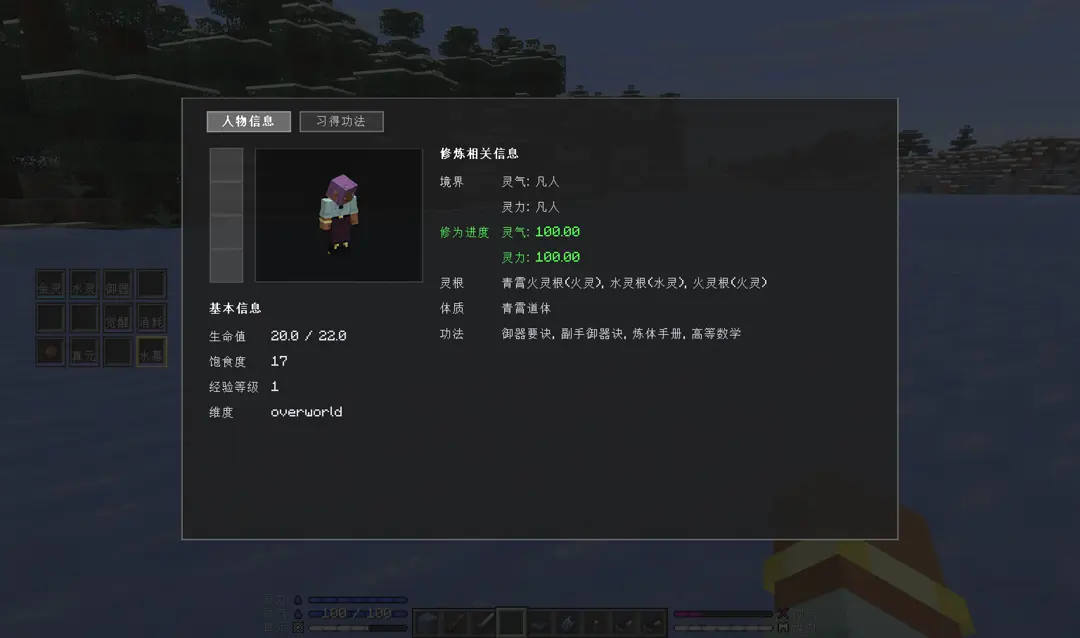
| Group | Entries |
|---|---|
| Basic Information | Health, food, experience level, dimension. |
| Cultivation Information | Realm (or Mortal), cultivation progress, whether you are currently cultivating, the breakthrough state, spirit roots, physiques and techniques. |
The breakthrough line reports whether the required progress is reached and whether its conditions are met. The client setting Client Settings → Information Panel → Refresh Interval (20 by default) controls how often the panel refreshes.
Learned Techniques Page
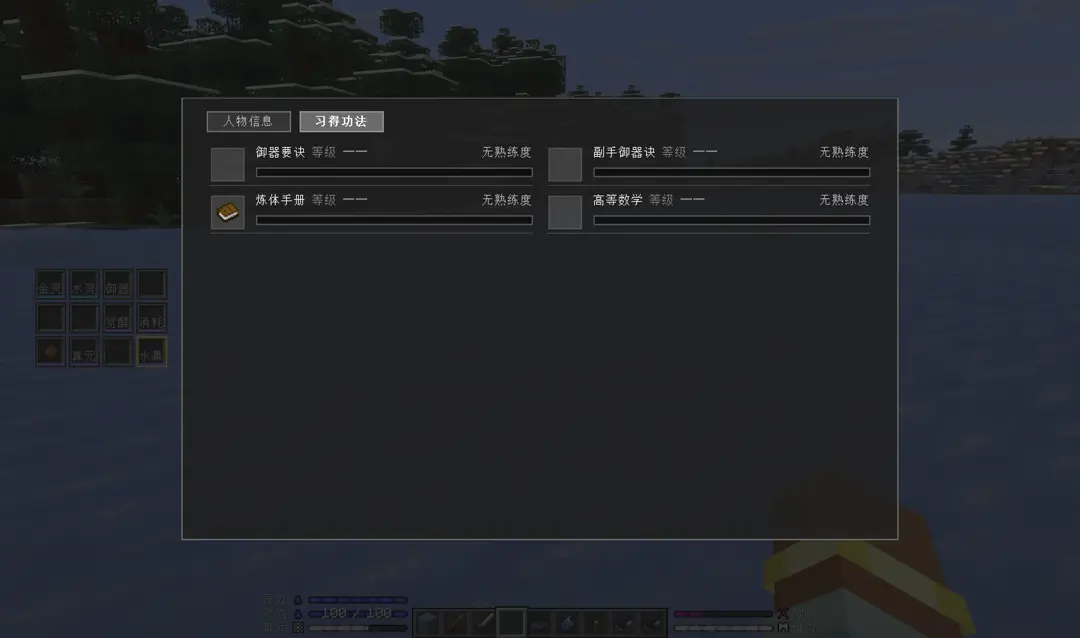
The Learned Techniques page is the second page of the character information panel: open the panel with Z and click the Learned Techniques tab. It lists every technique you have learned, one row each, and scrolls when the list is longer than the page.
| Row part | Shows |
|---|---|
| Icon | The technique's icon, inside a slot frame. A technique that defines no icon leaves the frame empty. |
| Name | The technique's own name, in the ordinary text colour (a technique no longer has a grade of its own, so there is no tier colour to draw it in). A name too long for the line is cut with an ellipsis, while the level beside it is never cut for the name's sake. |
| Level | The name of the level you stand on, plus your rank in that chain, as Level <name> (<rank>/<total>). A level whose data pack defines no display name falls back to the rank number. |
| Mastery | Your mastery against what the next level asks for, as <current> / <required>, or Mastered at the top of a chain. |